



How to Check If Your YouTube Channel Is Making Money with AdSense in 2025
Estimated reading time: 15 minutes
Thank you for reading this post, don't forget to subscribe!How to Check if Your YouTube Channel Is Earning Money Through AdSense (Step-by-Step Guide)
Knowing if your YouTube channel is earning money through AdSense is essential for every creator. Earnings from ads are the main source of income on YouTube, so checking your account regularly helps you avoid any surprises. It also keeps your channel compliant with YouTube’s policies, ensuring you get paid without interruption.
By understanding where to find your AdSense earnings and how they work, you can track your progress and make informed decisions about your content. This simple check confirms whether your channel is monetized, how much you’ve earned, and what’s coming next in your payments. Staying on top of this information gives you control and peace of mind as your channel grows.
For a quick guide on how to check your earnings on Google AdSense, here’s a helpful video:
Confirm YouTube Partner Program Status and Channel Monetization Settings
Before you dig into your AdSense reports, it’s important to confirm your channel actually qualifies to earn money. YouTube sets clear milestones and policy rules for your channel to be eligible for monetization. This means checking if you’ve hit your subscriber and watch-hour targets, as well as making sure your channel complies with YouTube’s policies and ad guidelines.
Here’s how you can quickly verify all these critical components right inside YouTube Studio, so you know exactly where your channel stands.
Check subscriber and watch‑hour thresholds
Start by opening YouTube Studio on your desktop or mobile app (studio.youtube.com).
- On the left menu, click Monetization. This section shows your current Partner Program status.
- Look for the metrics count: 1,000 subscribers and 4,000 valid public watch hours within the past 12 months. These are set by YouTube as the minimum thresholds for joining the Partner Program and earning revenue from ads.
But what counts as valid watch hours? Only views from public videos count—private, deleted, or unlisted videos do not contribute. Additionally, watch hours must come from legitimate viewers. Views generated by bots or automated processes won’t count.
If your channel hasn’t reached these targets yet, the Monetization tab will clearly indicate how close you are in real time. Keep tracking this regularly to measure your progress.
If you’ve recently crossed the thresholds, YouTube usually sends an email inviting you to apply for the Partner Program. After approval, your channel earns the right to monetize.
Review policy compliance and ad settings
Meeting the numbers is just part of the journey. YouTube prioritizes policy compliance to protect advertisers and viewers.
Within the Monetization page, check the following at a glance:
- Policy status: Look for alerts about any strikes against your channel for violating community guidelines or copyright rules.
- Monetization eligibility: Confirm if your channel has been accepted into the YouTube Partner Program.
- Ad formats enabled: Verify if ads like display ads, overlay ads, or skippable video ads are active. Disabled formats can impact your earnings.
If your channel receives a strike or your monetization is disabled, ads won’t run, and you won’t earn money until issues are resolved. YouTube provides detailed information about which videos or policies triggered restrictions, so you can take action.
Checking these settings regularly helps you catch red flags early and maintain smooth earnings through AdSense.
For more detailed steps and policy info, you can visit the official YouTube Partner Program support page.

Screenshot showing YouTube Studio Monetization tab with subscriber count, watch hours, and policy alerts. Image created with AI.
Keeping these basics in check ensures you know exactly where you stand on monetization and what to improve next.
Locate and Sign In to the Linked AdSense Account
Once you’ve confirmed your channel is eligible for monetization, the next step is to find which AdSense account is linked to your YouTube channel and sign in to monitor your earnings. This process verifies that your channel’s earnings flow to the correct account and helps you understand payment details.
Find the AdSense Link in YouTube Studio
Start by signing in to YouTube Studio with the Google account connected to your channel. Here’s what you need to do:
- On the left sidebar, click Monetization. This is where all your money-related settings live.
- Inside the Monetization tab, look for the section that mentions your linked AdSense account.
- There should be a clickable link labeled something like AdSense account or Associated AdSense account.
- When you click this link, you’ll see the email address of the AdSense account tied to your YouTube channel. This helps you confirm if it’s the right Google account managing your earnings.
If the email isn’t familiar, double-check your other Google accounts—you want to use the same one consistently to avoid losing access to payments.
Navigate to Payments and Performance Sections
Once you know your linked AdSense account, open Google AdSense using the same Google account email you noted from YouTube Studio.
Inside AdSense, two key tabs will reveal insight into your YouTube earnings and payments:
- Payments: This section displays your current balance, upcoming payment threshold, and the history of payments made to you. It shows when you can expect your next paycheck and how much is pending payout.
- Performance: Here you get a breakdown of your earnings by date, ad formats, or even individual YouTube channels if you have multiple linked. This helps identify trends or which videos are performing best in revenue generation.
Visiting these tabs regularly offers a clear picture of how your channel’s monetization is progressing and when you will get paid.
The important thing is to always sign in with the same Google account connected to your YouTube channel’s AdSense link. Switching accounts or mismatched sign-ins can lead to confusion or missing earnings.
Making this connection between YouTube Studio and AdSense your daily habit keeps your earnings transparent, organized, and under your control. It’s where you turn views into dollars—and knowing exactly where to find this info puts you one step ahead in your creator journey.
For detailed help from Google, check out their support to change or view your linked AdSense account in YouTube Studio.
How to Read YouTube Earnings Data Inside AdSense
Once you’ve linked your YouTube channel to your AdSense account, understanding your earnings report is the next important step. The AdSense interface offers powerful filters and clear breakdowns so you can see exactly how much your channel is earning, and when. This section explains how to filter your earnings specifically for YouTube and how to interpret the key earning figures.
Use the ‘Your earnings’ filter for YouTube: Select YouTube as the source, then choose the desired date range to see channel‑specific numbers
To zero in on your YouTube earnings inside AdSense, start with the “Your earnings” tab. This filter allows you to separate income streams and focus only on what YouTube has generated.
Here’s how to do it:
- Go to your Google AdSense account and sign in with the Google account linked to your YouTube channel.
- Click on the Reports or Performance section, then look for the filter tool.
- From the “Your earnings” filter, choose YouTube as the source. This strips out all other earnings such as website ads or apps.
- Pick your preferred date range — daily, monthly, or custom — to see earnings over time. This helps track growth or spot dips in revenue for specific periods.
- You can also sort and group your data by various metrics like ad format, country, or video, depending on what insights you want to extract.
This filtering setup ensures you see a clean, focused view of the money flowing from YouTube ads, not muddled with other AdSense revenue sources.
Interpret estimated and finalized earnings: Clarify that estimated earnings are provisional and may change, while finalized earnings are the amount that will be paid
Once filtered, your earnings report will show two key types of figures: estimated earnings and finalized earnings. Understanding their difference helps avoid confusion about what money you actually get paid.
- Estimated Earnings are your preliminary income amounts based on ad impressions and clicks observed so far. They update daily as new data comes in. However, these numbers are not final; they may be adjusted later to account for invalid clicks or after YouTube’s internal auditing.
- Finalized Earnings are your confirmed monthly revenue figures. Once YouTube completes their review and sends the payment details to AdSense, these numbers become official. They typically appear between the 7th and 12th day of the following month (source). This is the amount you will actually receive in your bank account if you’ve met the payment threshold.
It’s crucial to remember that estimated earnings give a running update, while finalized earnings finalize your payout. Rely on the finalized numbers for your budgeting and financial planning.
Keeping an eye on both values can help you spot if your earnings are trending up or down even before the month’s end, so you can adjust your content or marketing efforts accordingly.
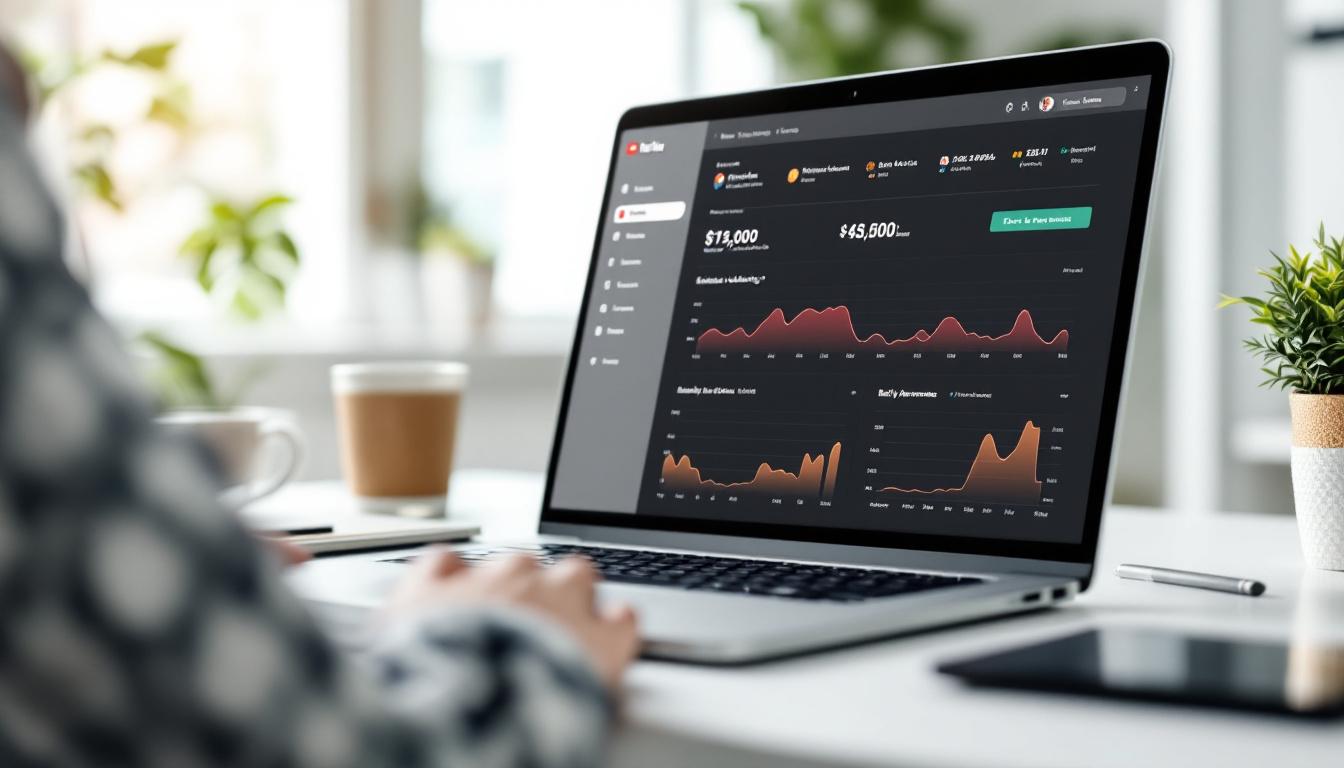
YouTube earnings dashboard showing filtered data by date range and source. Image created with AI.
By using these filters correctly and understanding your earnings statuses, you gain clear insight into your YouTube channel’s revenue journey through AdSense. This transparency empowers you to manage your monetization more confidently and watch your channel’s financial health grow.
Check Payment Thresholds, Schedule, and Upcoming Payouts
When you’re ready to see how much YouTube has earned for you through AdSense, it helps to understand the payment rules and timing. Knowing the minimum payout needed, how to adjust currency settings, and when you can expect your next payment gives you clearer control over your income. This section walks you through checking these details inside your AdSense account so you won’t miss a dime.
Review payment threshold and currency settings
Google AdSense has a standard payment threshold of $100 (or the equivalent in your local currency). This means you only receive a payout once your balance reaches this minimum. If your earnings haven’t hit that mark yet, your money will stay pending in your account until it does.
To check or change this threshold and currency:
- Sign in to your AdSense Payments page.
- Click the Payments info option.
- Select Manage settings and then hit Edit next to “Payment schedule.”
- Here, you can see your current payout threshold. You can also update your payment currency if needed, though this is usually set when you first create your account.
Adjusting these settings might take some time to process, so plan ahead if you want to receive payments in a different currency. Remember, the currency choice affects the minimum payout amount since the threshold stays consistent relative to your selection.
Keeping an eye on this threshold helps you avoid wondering why a payout hasn’t arrived yet. Sometimes, your earnings are simply below the payout minimum, which is nothing to worry about—it just means you need to keep growing your channel until the next batch of earnings is ready.
Find the next payment date and pending balance
Knowing when you’ll get paid can take the stress out of waiting. AdSense shows your next payment date and how much money is waiting to be paid once you hit the threshold.
Here’s where to find this info:
- From your AdSense dashboard, click the Payments tab.
- Look for the calendar icon—this marks your upcoming payment date. Google usually processes payments in the last week of each month for the previous month’s finalized earnings.
- Near this date, you’ll see your pending balance—the amount earned so far but not yet paid out. This balance grows as your revenue builds, and it may include earnings that are still being reviewed or finalized by YouTube and Google.
Your pending balance isn’t money in your bank yet, but it’s close. Once it reaches or exceeds the $100 threshold and clears any holds or tax requirements, AdSense schedules the payment following its regular cycle.
The Payments tab also keeps a history of your past payouts, so you can track how much you’ve earned over time. This snapshot helps you stay motivated and informed on your channel’s revenue progress.
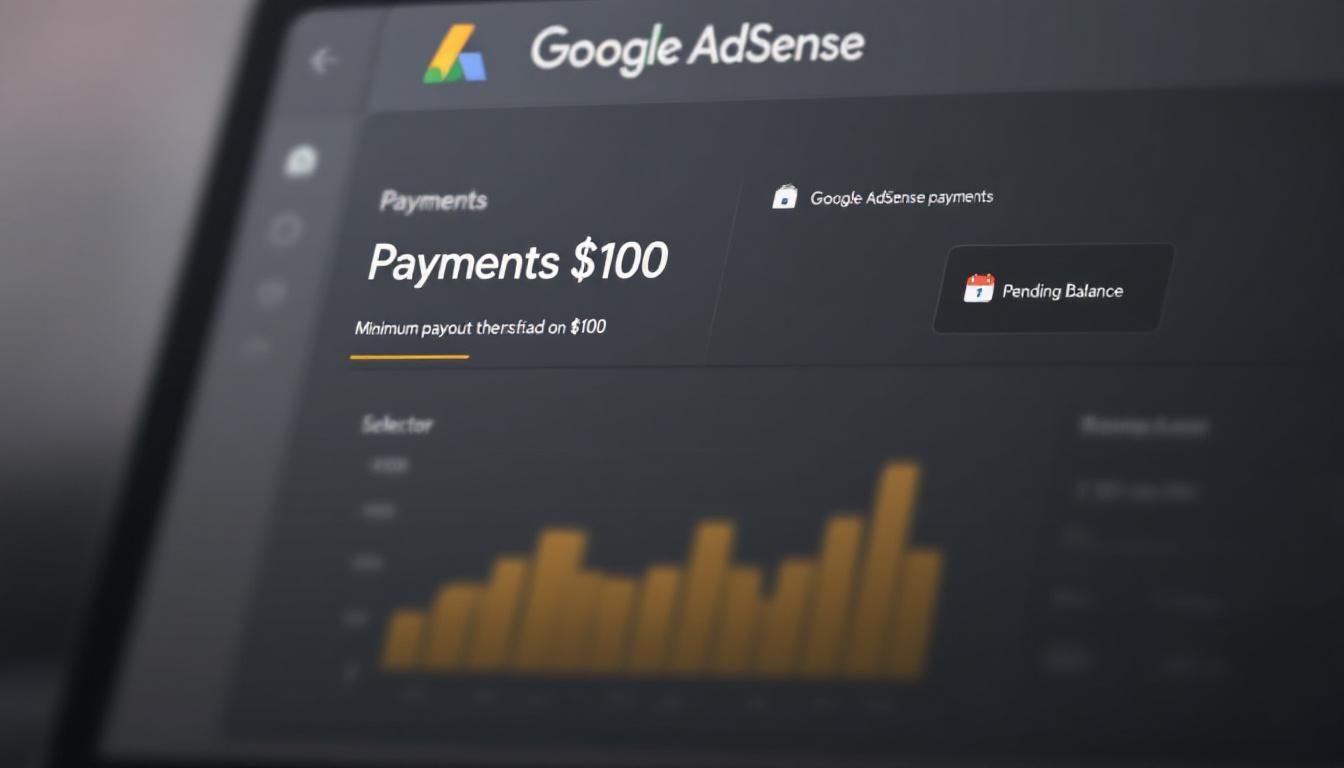
Google AdSense Payments dashboard showing where to find payment thresholds, currency, next payout date, and pending balance.
Making a habit of checking these details ensures you always know when your earnings are ready to drop into your bank. No surprises, just clear expectations on your YouTube AdSense revenue. For more info on payment thresholds and schedules, you can visit Google’s official AdSense payment thresholds guide.
Troubleshoot Missing or Delayed Earnings
If your YouTube channel isn’t showing expected earnings or payments feel late, it’s essential to track down the root cause quickly. Missing or delayed AdSense earnings can happen for several reasons, but most issues you can fix by checking a few key areas in your YouTube Studio and AdSense account. Below, we break down the main factors that can stop your money from arriving on time and what you should do about them.
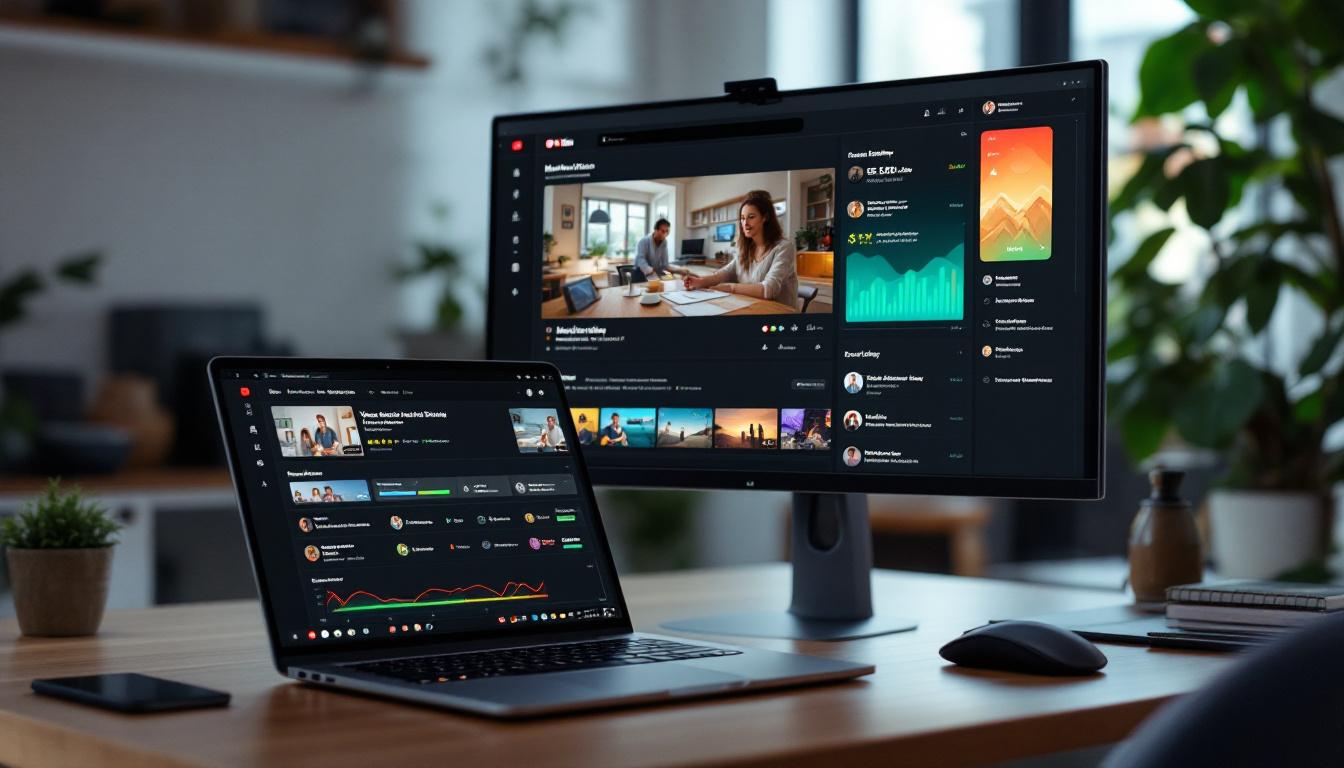
YouTube Studio Monetization tab with earnings overview and alerts. Image generated by AI.
Check for pending review or demonetization notices
The Monetization tab inside YouTube Studio is your first stop when earnings go missing. YouTube reviews channels regularly to keep ads aligned with policies. Sometimes your channel or specific videos go into pending review or receive demonetization notices that pause ads—and earnings immediately.
- Open YouTube Studio and click the Monetization tab.
- Look for any alerts or status messages indicating “Under review” or “Monetization paused”.
- If the notice is there, earnings from affected videos will be on hold until the review clears or you resolve policy issues.
- Sometimes demonetization happens due to copyright claims or content that doesn’t meet advertiser-friendly guidelines. The Monetization tab usually highlights these specific videos.
Keep in mind that reviews and appeals can take days, so if you spot a notice, be patient but also use the time to check your videos for possible content or policy violations.
For more context about these policies, the official YouTube Monetization Policies page explains how the process works.
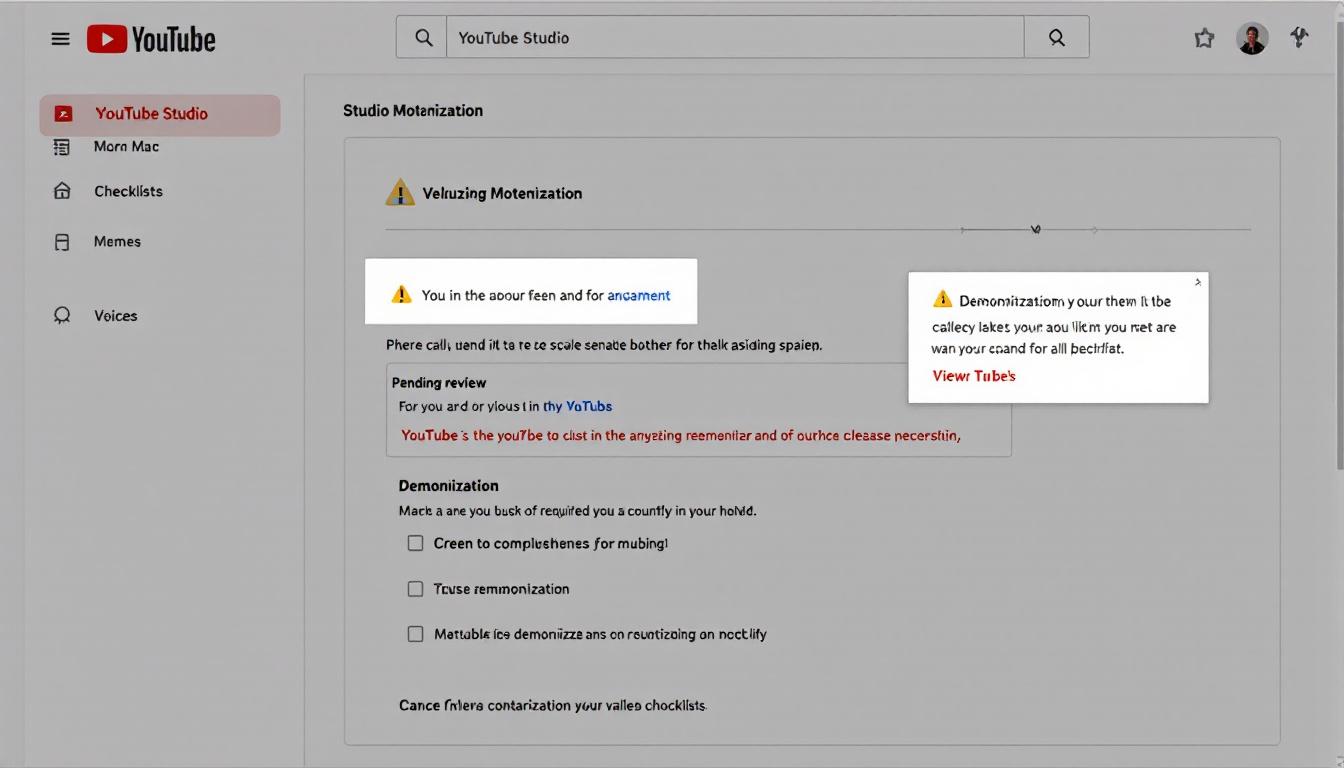
Pending review or demonetization warnings in YouTube Studio can stop earnings. Image created with AI.
Verify ad formats and ad serving status
Even if your channel is monetized, you need to ensure the right types of ads are enabled on your videos to generate revenue. Ad formats include skippable video ads, non-skippable ads, and overlay ads. If any of these are disabled, your earnings can drop or stall.
In YouTube Studio:
- Go to the Videos tab.
- Select one or more videos you want to monetize.
- Click Monetization then check if the ad formats like skippable ads or overlays are turned on.
- Also, verify that ads are actually serving on your videos by checking the Ad Serving Status under monetization.
If ads are disabled or restricted because of content type or any misconfiguration, your videos won’t generate ad revenue. Fix these settings or adjust your content to become advertiser-friendly.
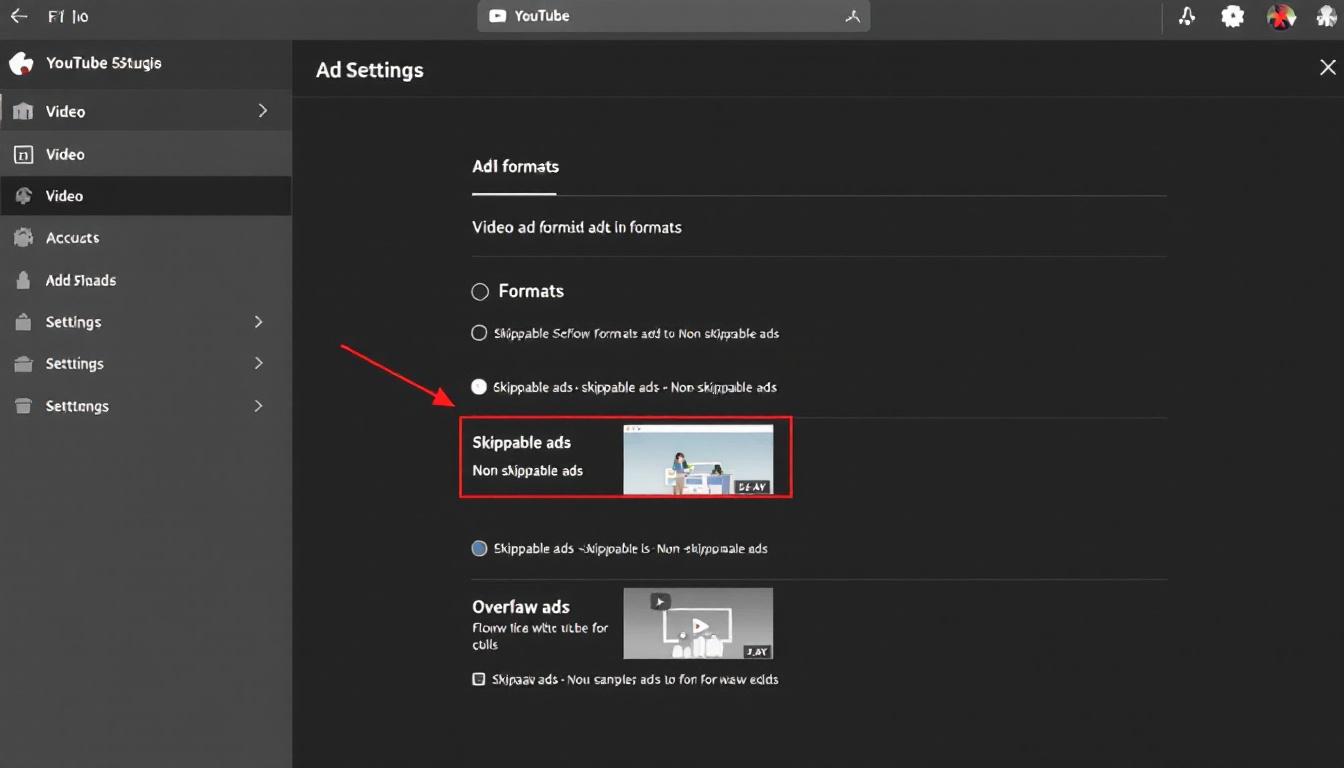
Toggles for skippable, non-skippable, and overlay ads must be enabled to earn. Image made with AI.
Confirm tax and payment information are up to date
Missing or outdated tax and payment details are common reasons why your AdSense payouts stop or get delayed. Google requires accurate tax information to process payments, especially if you reside in the U.S., along with valid bank account or payment method details.
Steps to check in your AdSense Payments settings:
- Log in to your Google AdSense account.
- Visit the Payments section.
- Look for any alerts about incomplete or missing tax forms (like a W-9 or W-8BEN).
- Verify your bank details or payout method are current and haven’t expired.
- If you see any request from AdSense to submit tax information, complete it promptly to avoid payment holds.
Uncompleted tax forms or expired banking info can put your earnings on hold until you update them. The process is straightforward but critical for smooth payment processing.
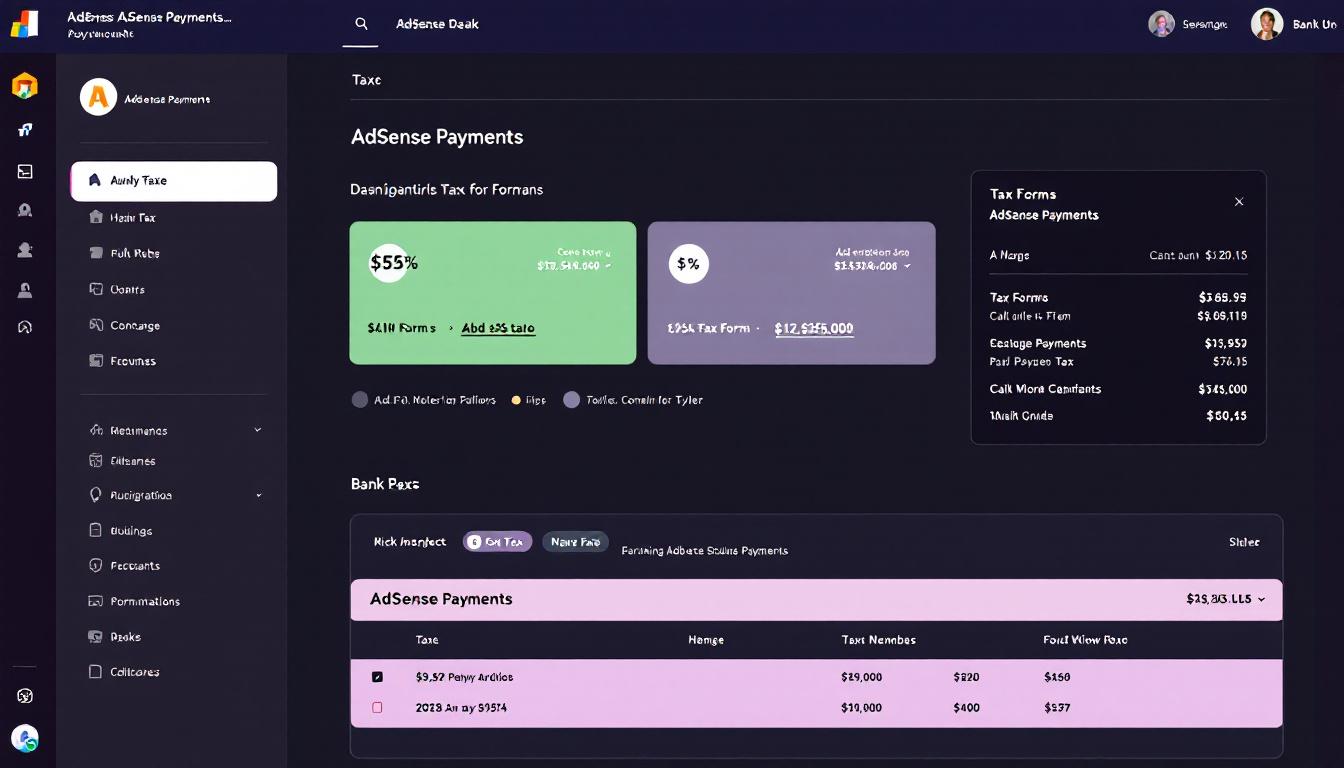
Keep tax and payment information up to date in AdSense to avoid payment delays. Image generated by AI.
Troubleshooting checklist for missing or delayed earnings
If your earnings feel stuck or missing, run through this quick checklist:
- Check Monetization tab for any pending review or demonetization notices.
- Verify ad formats and ad serving are enabled on your videos.
- Confirm all required tax forms and payment details in AdSense are complete and correct.
- Make sure your earning balance has reached the $100 payout threshold (if below, no payment yet).
- Review your payment schedule in AdSense to understand payment timing.
- Keep an eye on AdSense messages or emails for urgent compliance info.
Following these steps helps you identify and fix most common causes of missing or delayed payments. Staying proactive with your monetization and AdSense settings keeps your earnings flowing smoothly.
For community insights on similar monetization issues and resolutions, you can explore discussions at the Google AdSense Community.
This section arms you with practical checks to troubleshoot when your YouTube earnings don’t show up as expected. Being aware of reviews, ad settings, and tax info is key to keeping your AdSense payments on schedule.
Conclusion
Checking if your YouTube channel earns through AdSense boils down to a few clear steps. First, confirm your eligibility by verifying your Partner Program status and monetization settings within YouTube Studio. Next, log into the linked AdSense account to see your earnings, then use the AdSense reports to filter and understand your YouTube-specific revenue data. Always keep an eye on payment thresholds, your payout schedule, and ensure your tax and payment info is current. Finally, if earnings seem missing or delayed, use the troubleshooting tips to identify and fix common issues quickly.
Make it a habit to review these areas regularly. Staying informed about your channel’s monetization helps you make smarter content and revenue decisions. Keep tracking, stay compliant, and watch your YouTube earnings grow with confidence. Thanks for reading—feel free to share how you manage your AdSense checks or any tips you’ve found useful.